
Now You're Set Up: What to Expect
A quick tour of your live dashboard — real-time sauna and plunge readings, and how to log activity and incidents as they happen.
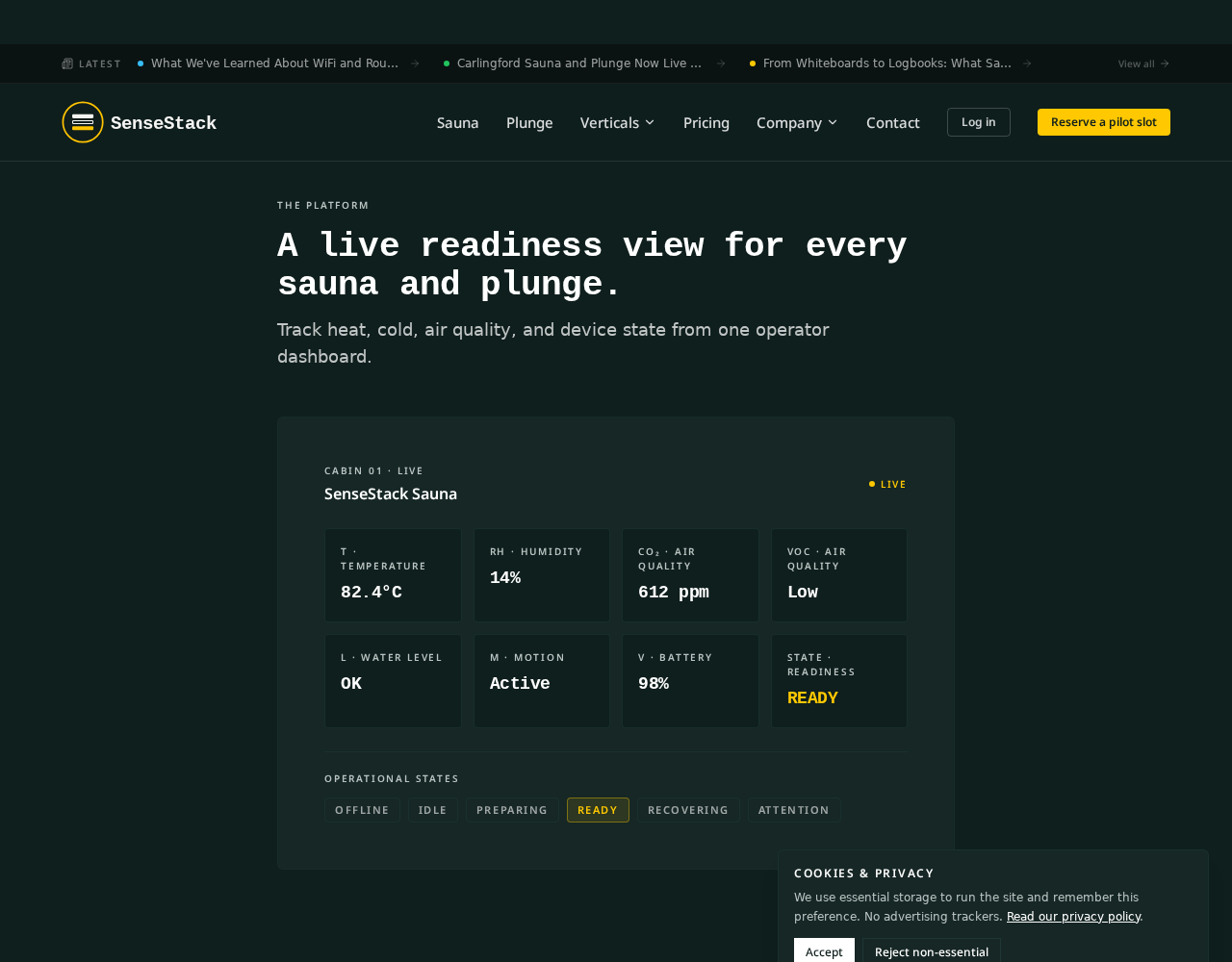
Once Mike finishes the install and hands over the dashboard, your cabin comes alive in real time. Every sauna and plunge device reports temperature, state, and sensor health continuously. This article is the short tour of what you will see, and how to keep a record of what happens during the day.
Real-time temperature at a glance
The dashboard updates every few seconds. For each device you see a single readiness word — Ready, Preparing, Recovering, Idle, Attention, or Offline — plus the live temperature underneath. Sauna readings climb during heat-up and settle inside the target band. Plunge readings hold in the 4–8 °C range and tick slightly when a guest enters and the water circulates.
- Sauna: watch the heat-up curve in the morning and the brief dip when the door opens.
- Plunge: the temperature is stable by design — any sustained rise is worth a quick check.
- Both devices show the same pattern over time so your team learns what normal looks like.
Logging operator activity
Not everything that matters is measured by a sensor. When you throw another log on the fire, add a ladle of water to the stones, or open the door for ventilation, you can log that action directly on the device card. These entries sit alongside the automatic sensor timeline and help explain why a temperature moved.
- Add a log entry from the device card in two taps — timestamp and note.
- Common logs: 'Logs added', 'Water ladled', 'Door opened for air', 'Cleaning cycle started'.
- Logs are visible to every operator on shift and stay in the history for review.
Tracking incidents and notes
When something unusual happens — a guest feels unwell, a heater cycles oddly, or the plunge warms faster than usual — you can flag it as an incident. Incidents are separate from routine logs. They stand out in the timeline and can be reviewed at the end of a shift or week to spot patterns.
- Flag an incident with a short description and the time is captured automatically.
- Use incidents for anything you would mention at handover: smells, sounds, guest feedback, or equipment behaviour.
- Review the incident list weekly — recurring themes usually point to a setting worth adjusting.
The best operators treat the dashboard like a shared logbook. Automatic data tells you what happened. Your notes tell you why. Together they build a complete picture of your cabin's day.
What a typical day looks like
Morning heat-up shows Preparing, then Ready before guests arrive. Between sessions you see brief Recovering states. Operators log water additions and door events. Any incident is flagged in the moment. By close of day you have a full timeline of sensor data and human notes — no memory required.